 spectra
Make Spotify look yours.
Spectra puts Spicetify's whole library of themes and extensions into the Spotify web player, the Windows app and your Meta Quest. Pick a theme and it changes while the music plays. Nothing gets patched, so a Spotify update can't break it.
Chrome · Edge · Firefox · Windows 10/11 · Meta Quest 3/3S
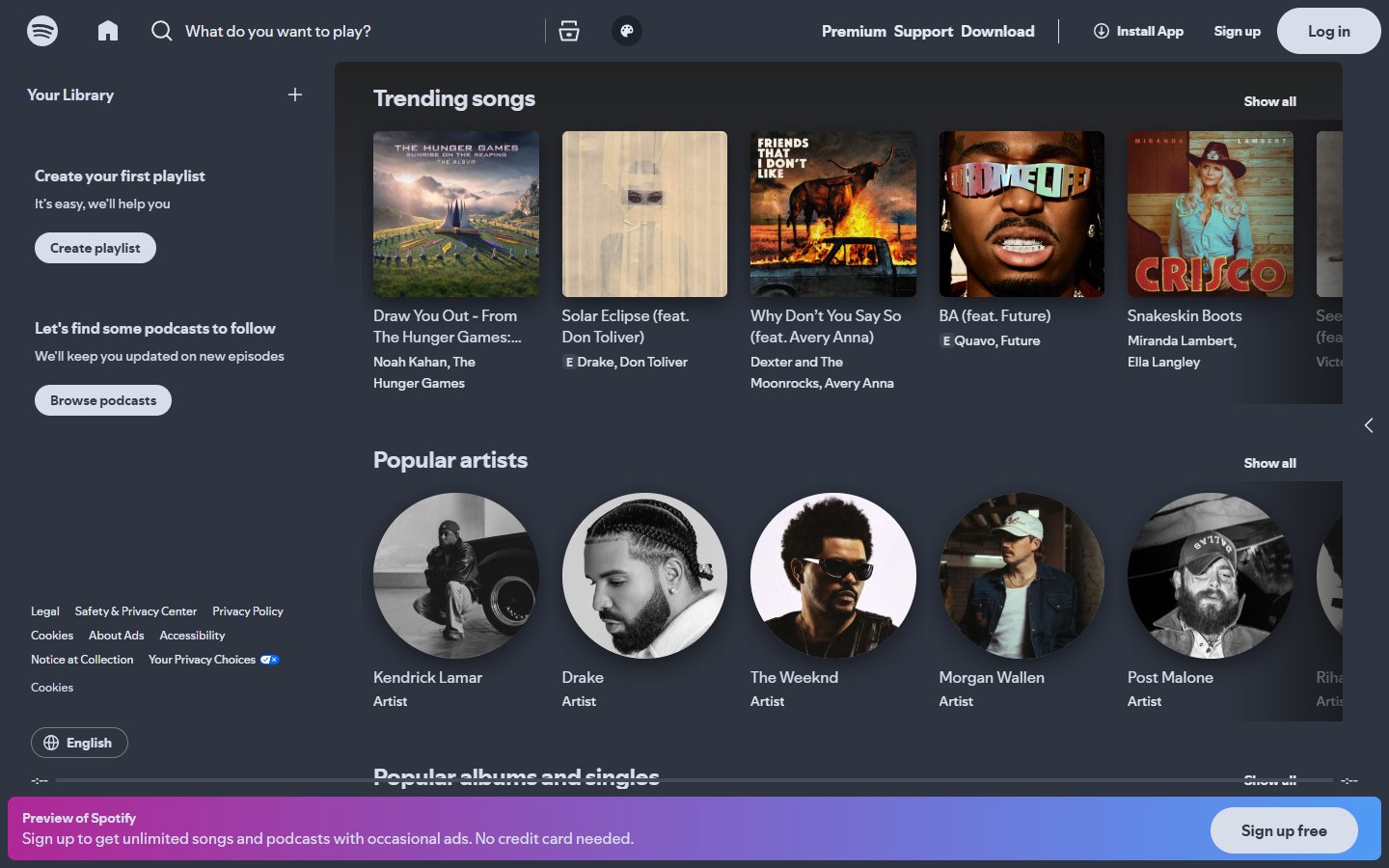
Same Spotify. Different mood.
Drag the handle. Same page, a few seconds apart, one click in between.
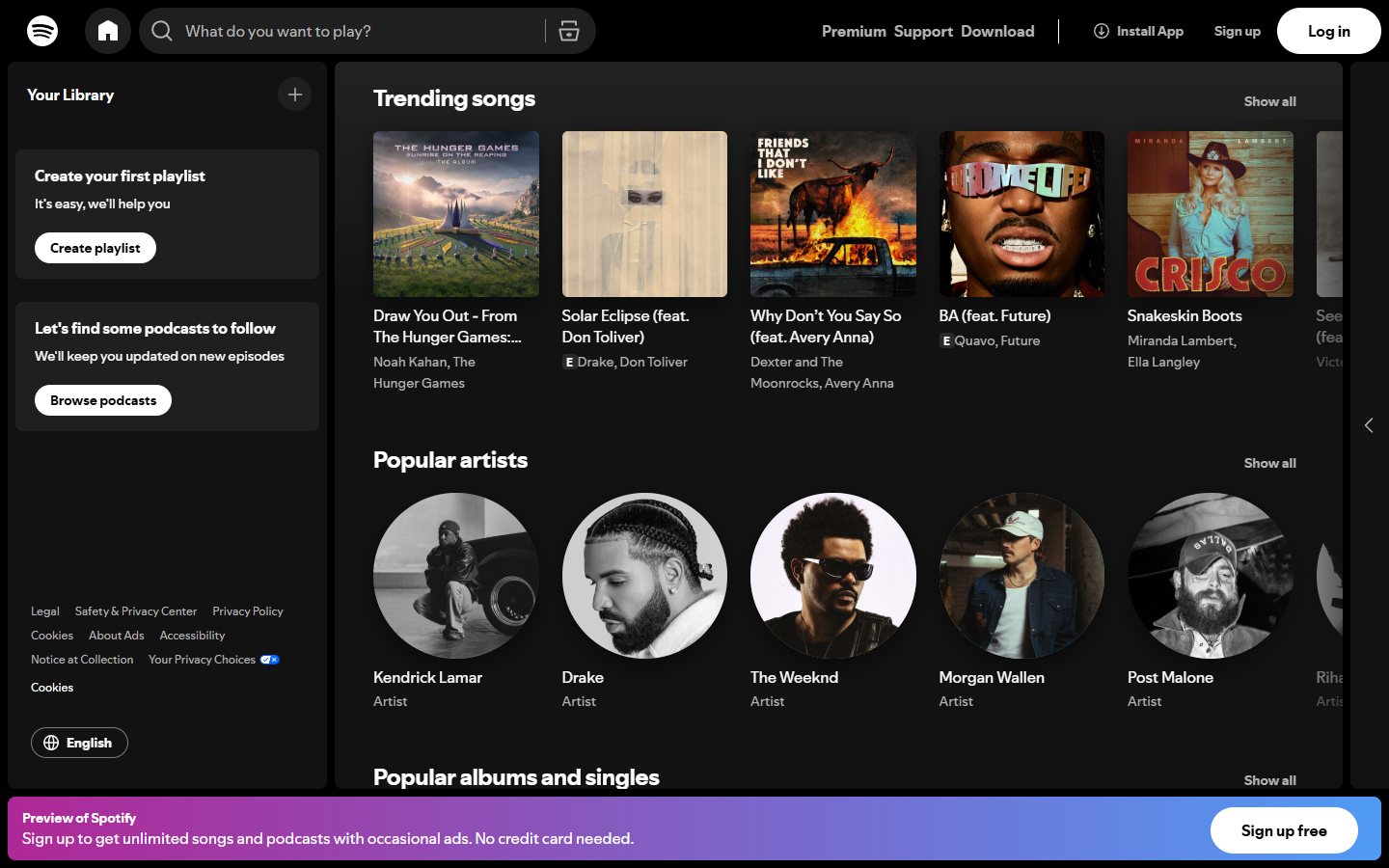
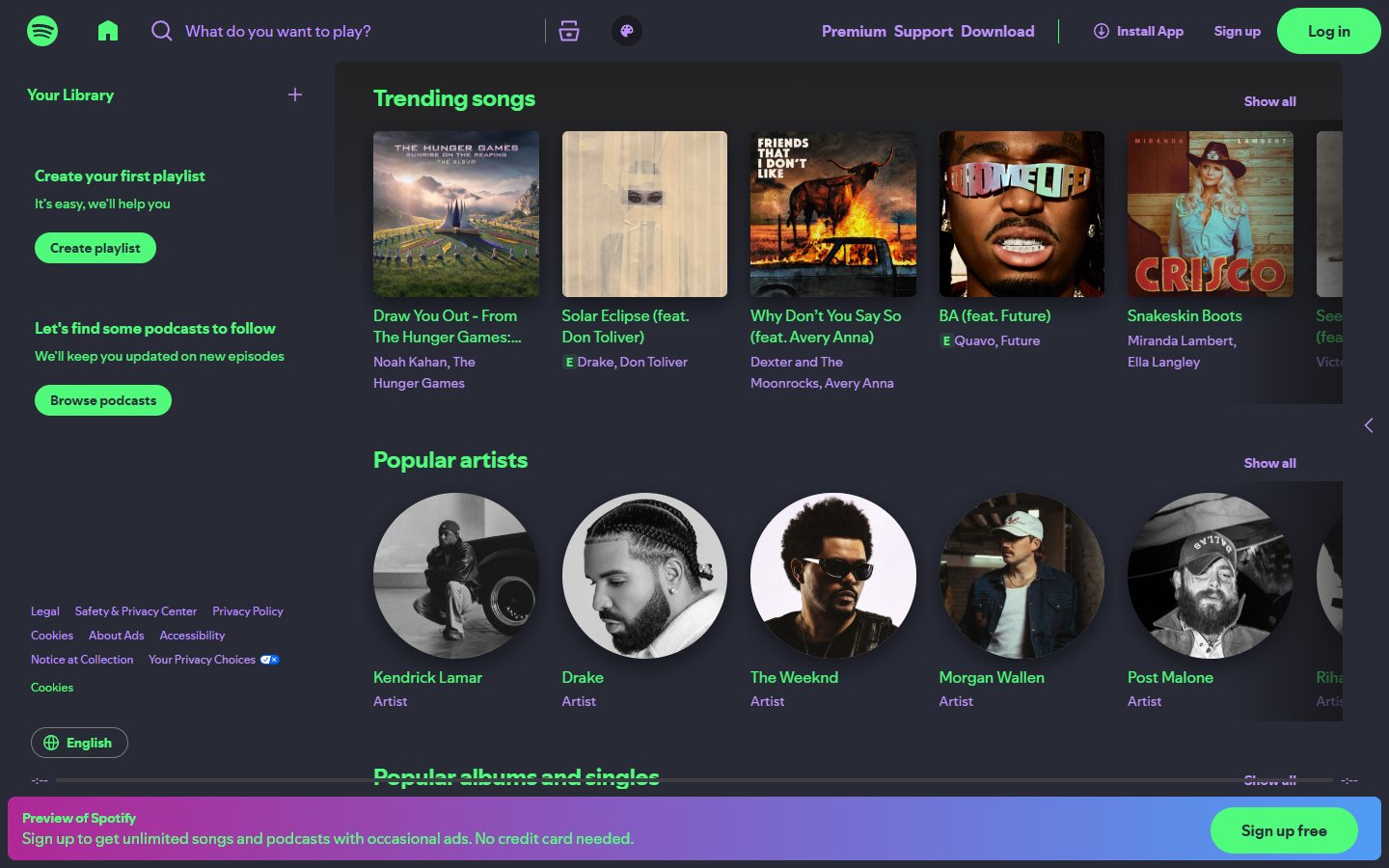 StockWith Spectra
What you actually get
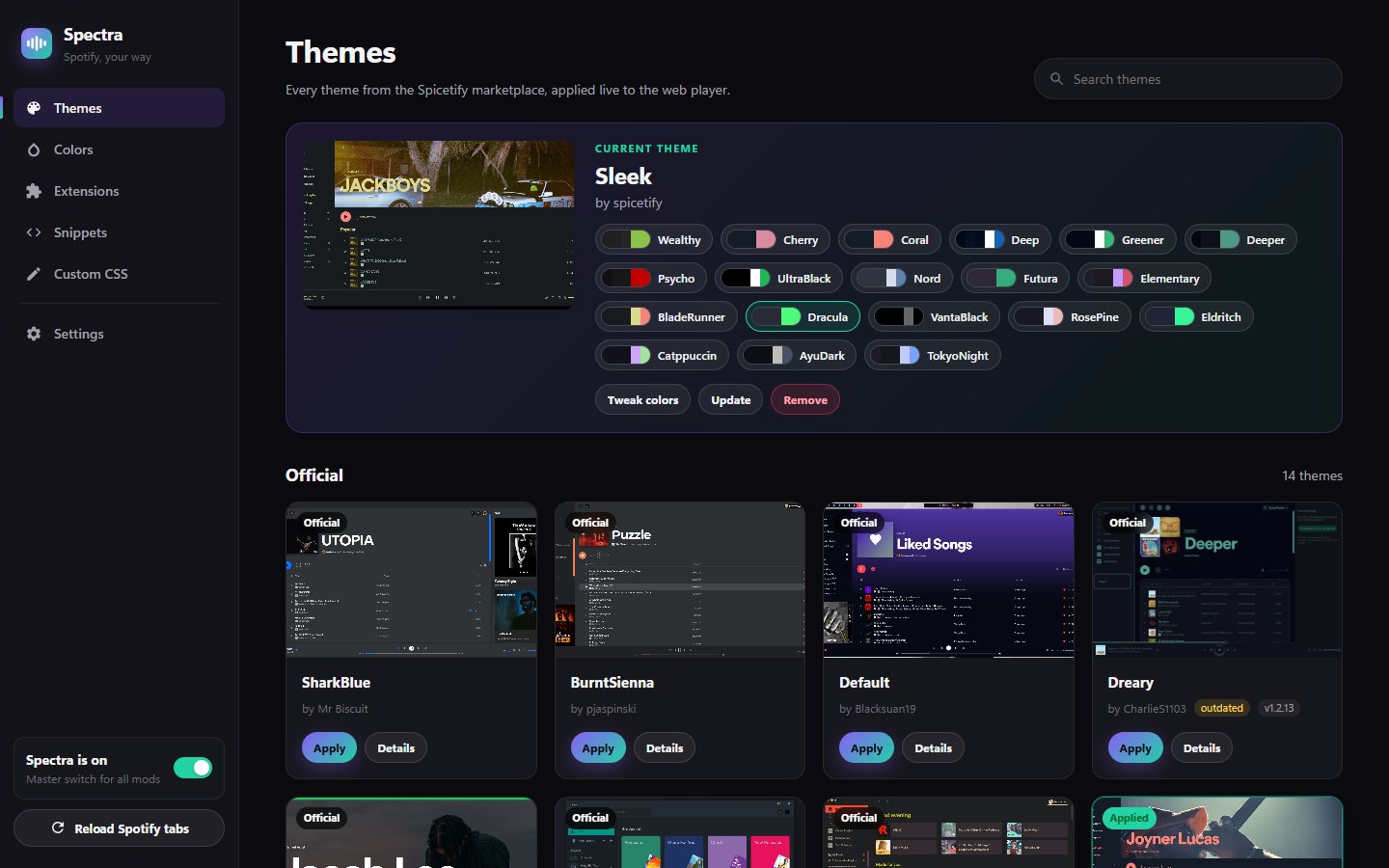
Every Spicetify theme, one click each
Browse the official set and hundreds of community themes with previews. Apply one and Spotify changes on the spot, with no restart and nothing to copy around.
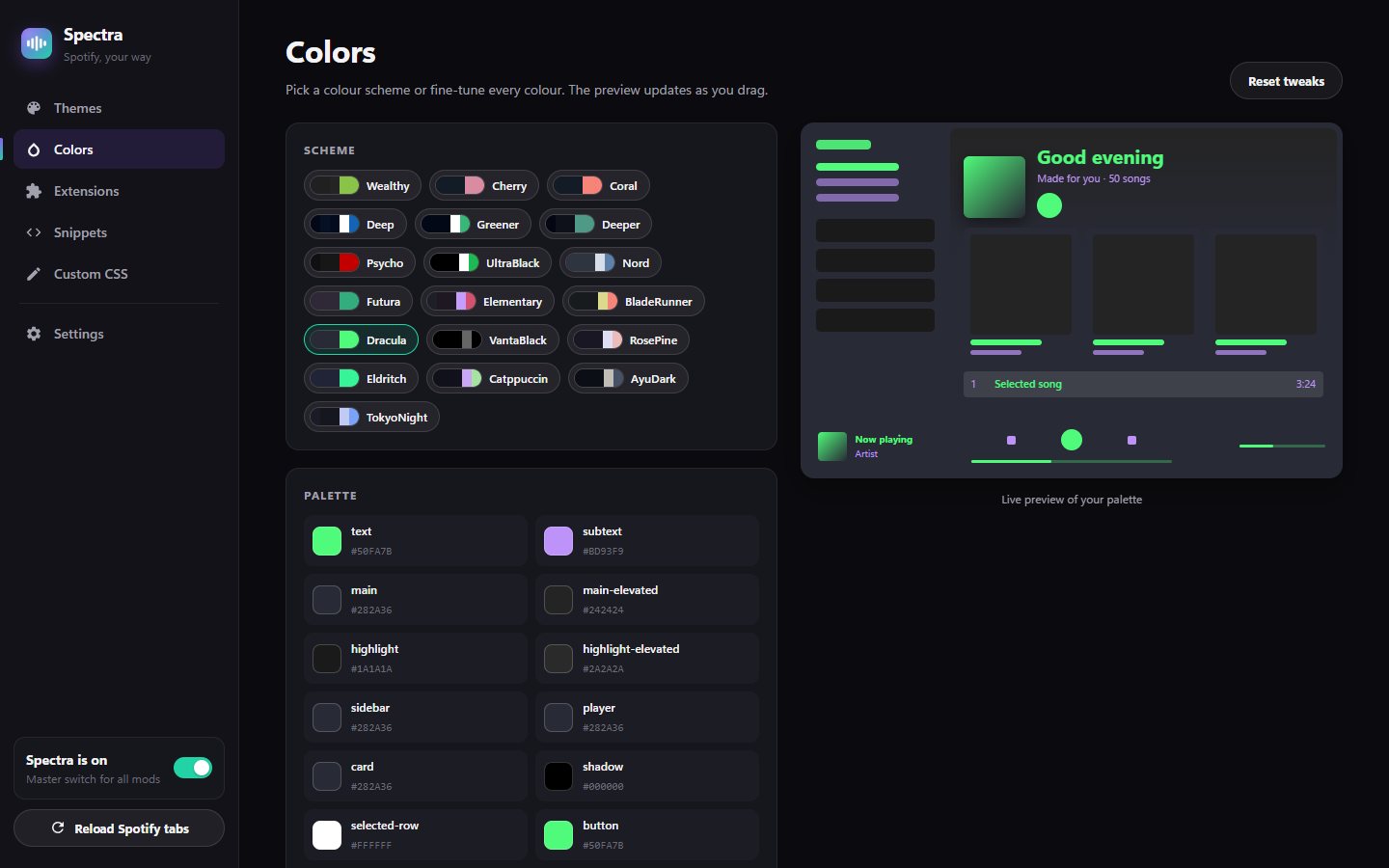
Colours you can tweak
Most themes come with several colour schemes. Switch between them, or drag a colour picker on any part of the palette and watch the preview change.
Extensions that just run
Lyrics, shuffle tools, keyboard shortcuts. Spicetify extensions run as they are. If one crashes, the others keep going.
Survives Spotify updates
Spotify renames its internals every few releases, which is what usually breaks themes. Spectra spots the new names and fixes the theme by itself.
Your own CSS, too
Write a few lines of CSS or grab a ready-made snippet, like a smaller now-playing bar or rounded album art, and stack them on top of any theme.
A few good places to start
These come straight from Spectra's update server, so this list changes over time. Every other Spicetify theme is in the app too.
Loading themes…
One place for all of it
The same dashboard on every platform: themes, colours, extensions, snippets, custom CSS and backups.
What works where
Spectra comes in a few versions. They share the same themes and dashboard but run in very different places, so here's what each one can do.
| Chrome / Edge | Firefox | Windows app | Meta Quest | |
|---|---|---|---|---|
| Themes & colour schemes | Yes | Yes | Yes | Yes |
| Snippets & custom CSS | Yes | Yes | Yes | Yes |
| Spicetify extensions | Yes | Yes | Yes | Yes |
| Instant fixes from Spectra | Yes | CSS only | Yes | Yes |
| Where it runs | open.spotify.com | open.spotify.com | The Spotify desktop app | Its own app (web player inside) |
| Keeps playing with the window closed | No | No | Yes | Yes |
Recently
- Loading…
Questions people ask
Is this Spicetify?
No, but it reads the same themes and runs the same extensions. Spicetify patches Spotify's files on your computer. Spectra changes Spotify while it's running, which is why it also works in the browser and doesn't break when Spotify updates.
Can my Spotify account get banned?
Spectra changes how Spotify looks and adds extensions on top. It doesn't touch ads, Premium or anything else account-related. That said, Spotify's terms don't officially allow modifying its apps, so there's no guarantee. Use it knowing that.
Do I need Spotify Premium?
No. Free accounts work. Some extensions depend on Premium-only features, and those say so themselves.
Why did my theme look wrong after a Spotify update?
Spotify renamed parts of its interface. Spectra rebuilds its list of names automatically and pushes fixes from its update server, so give it a minute, or reload Spotify. If it's still off, the theme itself may need an update from its author.
Does it work on phones?
Not right now. Spotify's phone apps are built in a way themes can't reach. The Meta Quest version works because it runs Spotify's web player.
How do I uninstall it?
Browser: remove the extension like any other. Windows: turn off "Always open Spotify with Spectra" first so Spotify's shortcuts go back to normal, then uninstall it from Settings → Apps. Quest: uninstall it from your library.